Accessing Settings
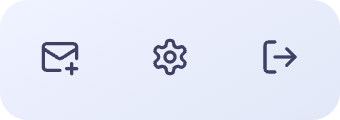
To access configuration settings, log in to Erugo as an administrator and click on the cog icon in the bottom right toolbar.
The settings panel is organized into several sections:
- Branding & UI — Visual customization, themes, logos, and backgrounds
- System Settings — Core application behavior, shares, SMTP, and authentication
- Email Templates — Customize notification emails
- Users — Manage user accounts
Branding & UI
Background Images
Customize the background images displayed throughout Erugo. By default, Erugo uses images from Unsplash, but you can upload your own.
| Setting | Description | Default |
|---|---|---|
Use My Backgrounds | When enabled, uses your uploaded background images instead of Unsplash. You must upload at least one image to enable this. | Disabled |
Image Change Interval | How often the background image randomly changes. Options include 3 minutes, 5 minutes, 1 hour, 2 hours, 1 day, or disabled. Set to 0 to show a random image on each page load instead. | 3 minutes |
Supported formats: PNG, JPEG, WebP images, and MP4/WebM videos.
Logo
Display your company or organization logo in the top-left corner of the interface.
| Setting | Description | Default |
|---|---|---|
Logo Image | Upload a PNG image to use as your logo. For best results, use an image with a transparent background. | Erugo logo |
Logo Width | Set the display width in pixels. Height adjusts automatically to maintain aspect ratio. Use a source image at least as wide as your display width for quality. | 100px |
Themes
Erugo includes a variety of pre-made themes and supports custom themes. Themes control colors, fonts, and other visual aspects of the interface.
Selecting a Theme
Choose from the available themes in the dropdown. Changes are previewed immediately, but you must save to apply them permanently.
Custom Themes
You can create and install custom themes:
- Download an existing theme as a starting point
- Modify the JSON file to customize colors and styles
- Install your custom theme by uploading the JSON file and giving it a name
Deleting Themes
You can delete custom themes you've installed. Bundled themes and the currently active theme cannot be deleted.
Other UI Options
| Setting | Description | Default |
|---|---|---|
Show Powered By Erugo | Show or hide the "Powered by Erugo" text at the bottom of the page. This helps Erugo be discovered by new users and supports the project, but you can hide it if you prefer. | Enabled |
System Settings
General
Basic application settings that control how Erugo identifies itself and behaves.
| Setting | Description | Default |
|---|---|---|
Application Name | The name displayed in title bars, dialogs, and throughout the interface. Helps maintain consistent branding. | Erugo File Sharing |
Application URL | The base URL of your Erugo instance. Used to create clickable links in notification emails. Do not include a trailing slash. | — |
Login Message | A custom message displayed on the login screen. Use for welcome messages, announcements, or important notifications. | Login to your account to get started. |
Default Language | The primary language for the interface. Users can override this with their personal preferences. Available: English, German, French, Italian, Dutch, Portuguese. | English |
Show Language Selector | When enabled, displays a language dropdown in the top-right corner allowing users to switch languages. | Enabled |
Email Notifications
Control which email notifications are sent to users. All notifications require SMTP to be configured.
| Notification | Description | Default |
|---|---|---|
Share Downloaded | Notify share owners when their shared content is downloaded for the first time. Helps users track when recipients access their files. | Enabled |
Share Expiry Warning | Send proactive notifications when shares are approaching expiration. Gives users the opportunity to extend access if needed. | Enabled |
Share Expired | Alert users when their shares have reached their expiration date and are no longer accessible to recipients. | Enabled |
Share Deletion Warning | Provide advance notice when expired shares are scheduled for permanent deletion. Gives users a final opportunity to save important content. | Enabled |
Share Deleted | Notify users when their shares have been permanently deleted from the system. Confirms the completion of the content lifecycle. | Enabled |
SMTP / Email Configuration
Configure your email server settings to enable notifications and password reset emails.
| Setting | Description | Default |
|---|---|---|
SMTP Host | The server address for your outgoing email service (e.g., smtp.gmail.com, smtp.mailgun.org). | — |
SMTP Port | The port number for your SMTP server. Common ports: 25 (standard), 465 (SSL), 587 (TLS). | 587 |
SMTP Username | The username to authenticate with your SMTP server. Usually your email address or account name. | — |
SMTP Password | The password for SMTP authentication. For Gmail, use an App Password instead of your regular password. | — |
Sender Name | The display name that appears as the sender (e.g., "Erugo File Sharing" or "Your Company Name"). | — |
Sender Address | The email address used as the sender for all system emails. Should be valid and configured with your SMTP service. | — |
Authentication Providers
Configure external authentication providers to allow users to log in with their existing accounts. Erugo supports OAuth2/OIDC providers including Google, Microsoft, Authentik, and generic OIDC.
Adding an Auth Provider
- Navigate to System Settings → Auth
- Click the + button to add a new provider
- Select the provider type from the dropdown
- Configure the required settings (Client ID, Client Secret, etc.)
- Copy the Callback URL and add it to your identity provider's configuration
- Enable the provider and save
Provider Settings
| Setting | Description |
|---|---|
Enable | Turn the provider on or off. Disabled providers won't appear on the login screen. |
Allow Self-Registration | When enabled, users who authenticate with this provider but don't have an existing account will have one created automatically. Only enable for trusted identity providers. |
Provider Name | The display name shown on the login button (e.g., "Sign in with Google"). |
Client ID | The OAuth client ID from your identity provider. |
Client Secret | The OAuth client secret from your identity provider. |
Callback URL | The URL to configure in your identity provider. This is automatically generated by Erugo. |
Email Templates
Customize the content of notification emails sent by Erugo. Each email type can be individually configured.
Available Templates
- Base Template — The wrapper template that all other emails inherit from
- Account Created — Sent to new users with a link to set their password
- Password Reset — Sent when a user requests a password reset
- Reverse Share Invite — Sent when a user invites someone to upload files
- Share Created — Sent to recipients when files are shared with them
- Share Downloaded — Sent to owners when their share is downloaded
- Share Expiry Warning — Sent before a share expires
- Share Expired — Sent when a share has expired
- Share Deletion Warning — Sent before files are permanently deleted
- Share Deleted — Sent when files have been permanently deleted
Template Sections
Each template can have the following sections customized:
| Section | Description |
|---|---|
Subject | The email subject line. |
Header | Content displayed at the top of the email. |
Message Content | The main body of the email. |
Action Button Text | Text displayed on the call-to-action button. |
Fallback Text | Text shown above the fallback link for email clients that can't display buttons properly. |
Need Help?
If you have questions about configuration or run into issues, our community is here to help.